Choose a format the destination accepts
An image format affects how an image is encoded and which features it can preserve. The first practical check is compatibility: does your receiving website, document workflow, or app accept the proposed format? A technically efficient file is not useful if the destination rejects it.
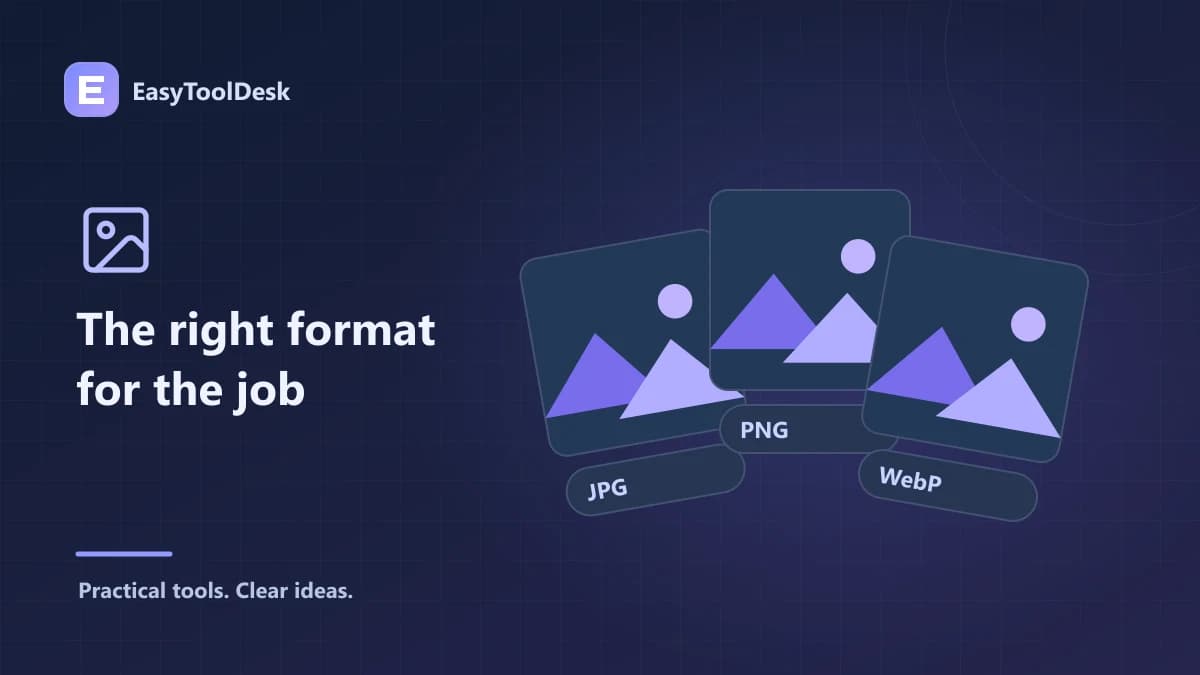
JPG is commonly used for photographic images and uses lossy compression. PNG supports transparency and lossless encoding. WebP supports both lossy and lossless encoding as well as transparency. Those are format capabilities; a particular conversion tool may use only one encoding approach.
Think about the image’s content
For a photograph, compare JPG and WebP exports at a quality level that preserves the detail you need. For a transparent graphic or an image with sharp text, confirm that the output preserves the required background and edge quality. File extension alone does not tell you whether a specific export is suitable.
A screenshot with labels may need a different quality check from a landscape photograph. Zoom in on small text, thin lines, and areas with gradual color changes. Review the file you will actually send, since a browser preview can make subtle problems easy to miss.
Transparency needs special attention
JPG does not preserve a transparent background. When converting a transparent image to JPG in EasyToolDesk, choose the background color that should appear behind it. Download the result and inspect areas that were previously transparent rather than assuming they will remain invisible.
WebP’s ability to support transparency does not mean every conversion preserves every characteristic of the original. Likewise, converting a previously compressed photograph to PNG does not restore discarded detail. The output may hold the current pixels in a different format without undoing earlier losses.
Compare actual outputs
Keep the original before making a format change.
Check the file types accepted by your destination.
Choose the EasyToolDesk converter that matches the required output.
Check the downloaded extension, dimensions, visual quality, and file size.
Avoid repeated unnecessary conversion between lossy formats when you can start from the original.
There is no universal promise that a WebP file will be a fixed percentage smaller than a JPG or PNG. Image content, dimensions, settings, and the source’s existing compression all affect the result. Compare the versions rather than using a generic savings percentage as a guarantee.
Frequently asked questions
Does changing the filename extension convert an image? No. Renaming photo.jpg to photo.webp does not re-encode its contents. Use a conversion tool that produces the requested format.
Which format should I use for every image? There is no single answer for every destination. Start with required features and compatibility, then compare quality and size for the actual image.
For format capabilities, consult MDN’s image format guide.
For WebP-specific background, see Google’s WebP FAQ.
Next, try a practical compression workflow with the format you selected.