Resizing and cropping solve different problems
Resizing changes an image’s pixel dimensions. Cropping selects a smaller region of the image and removes the surrounding area from the output. If an image must fit a particular shape, you may need one operation, the other, or both.
Start by deciding which content must remain visible. A product photograph may allow space to be trimmed, while a scanned notice may need every line retained. Keep the original so that an accidental crop does not become the only copy of important information.
Use aspect ratio to avoid stretching
An image measuring 1,200 × 800 pixels has a width-to-height ratio of 3:2. Resizing it to a width of 600 pixels with the same proportions produces a height of 400 pixels. Resizing it to 600 × 600 without preserving proportions changes the shape of its contents.
EasyToolDesk’s image resizer has a Keep aspect ratio option. With it enabled, the entered width determines the corresponding height from the original dimensions. If you need independently chosen width and height, turn the option off deliberately and inspect whether the result looks distorted.
Crop for a different shape
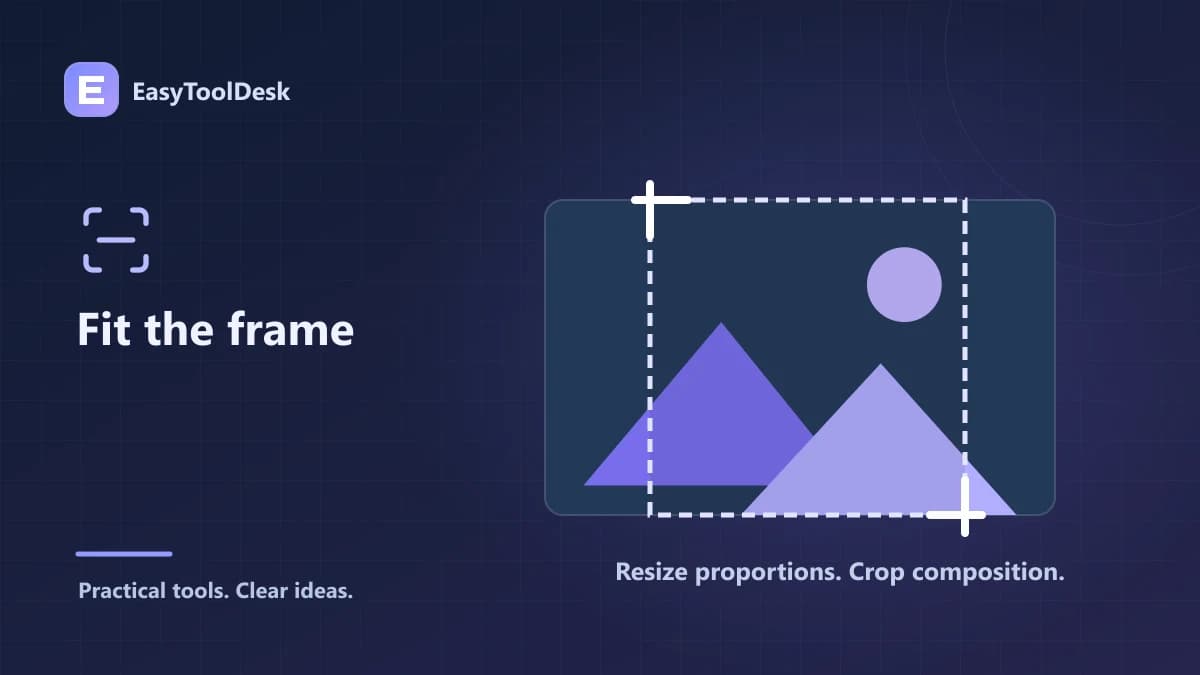
To make a square from the 1,200 × 800 example without stretching, select an 800 × 800 region. A horizontally centered square starts 200 pixels from the left edge and zero pixels from the top. That keeps the central area while removing 200 pixels from each side.
The image cropper accepts X and Y starting coordinates plus crop width and height. These are pixel values, so use positive whole-pixel dimensions and nonnegative starting positions. The tool limits the requested region to the available image area. Check the downloaded output if you request a region near an edge.
A practical order of operations
Identify the destination’s required shape and dimensions.
Crop the original if the composition needs a different shape.
Resize the selected area to the required output dimensions.
Inspect small text, faces, product edges, or other important details.
Check the file format and size before uploading elsewhere.
Making an image larger can create more pixels, but it does not recreate original detail that was never captured. For a larger display requirement, use a sufficiently detailed original if one is available instead of assuming an upscaled export will become sharper.
Frequently asked questions
Why does the height change when I enter a width? Keep aspect ratio is preserving the original proportions. This is intentional and avoids stretching.
Can the cropper recover content outside the original image? No. Cropping only selects existing pixels. It cannot reveal material that was not in the source or that was removed from an earlier copy.
After the dimensions are correct, review image format selection before exporting the final version.