When an image-based PDF is useful
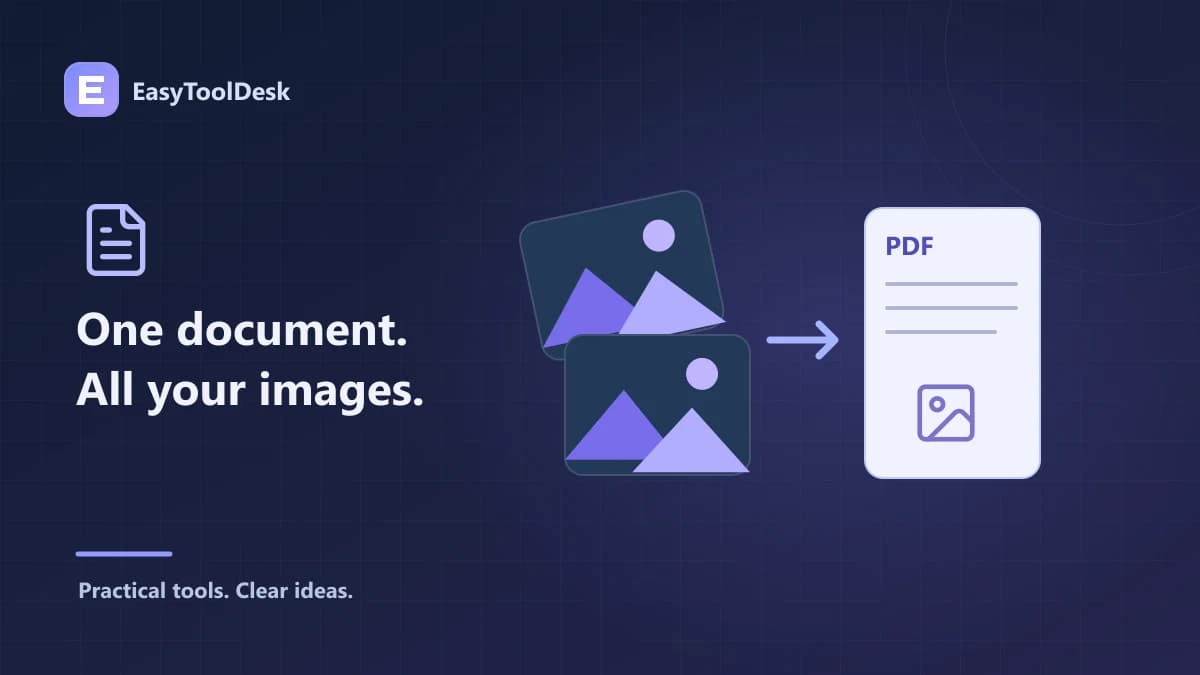
A PDF can put several pictures or screenshots into one document for sharing. This is useful when the recipient needs a single file rather than a folder of images. It does not automatically turn a photograph of text into a searchable text document.
Choose only the images the recipient needs, and keep a separate copy of the originals. Before conversion, inspect orientation, cropped edges, and legibility. A PDF wrapper cannot fix missing content or text that was already blurred in the source photograph.
Prepare the input images
Use supported JPG, PNG, or WebP images.
Check that text and important details can be read at a useful size.
Rotate or crop an image first if the source itself needs correction.
Choose clear filenames and review the selected-file list.
Start with a small sample when working on a phone or with large images.
EasyToolDesk’s image-to-PDF tool supports up to 30 selected files, a 40 MB per-file limit, and a 128 MB combined selection limit. Device memory can still affect processing. Working in smaller groups can help you identify a problematic file before repeating a large conversion.
Understand the generated pages
The current tool creates one page for each selected image and draws the image on it. Large images are scaled to fit within the tool’s page bounds while keeping their proportions. Transparent areas are placed against white, and images are encoded as JPEG before embedding.
These are implementation choices rather than a guarantee of a particular print layout or document quality. A very small image may remain small, and compression may affect fine detail. Open the exported PDF and check its page sizes, margins, and readability in the viewer you intend to use.
Check the document before sharing
Download the result, confirm the number of pages, and inspect the sequence. File selection order can depend on how files were chosen, so verify it rather than relying on filename numbering alone. If the sequence is wrong, select the inputs in the required order and create a new result.
Check for accidental inclusion of private material, blank screenshots, and cropped information. Redacting sensitive content requires a suitable redaction workflow; merely covering an area in a preview or combining files is not a guarantee that information is removed safely.
Frequently asked questions
Will the PDF contain selectable text? This tool embeds images and does not perform optical character recognition. Text visible in a source photograph remains part of that image rather than becoming a searchable text layer through this conversion.
Are my images uploaded? No. EasyToolDesk processes selected files in the browser. Downloaded copies remain on your device, and Reset does not delete those copies or the originals.
If the documents are already PDFs, use the guide to merging existing PDF files instead of turning them into images first.