Plan the document before combining files
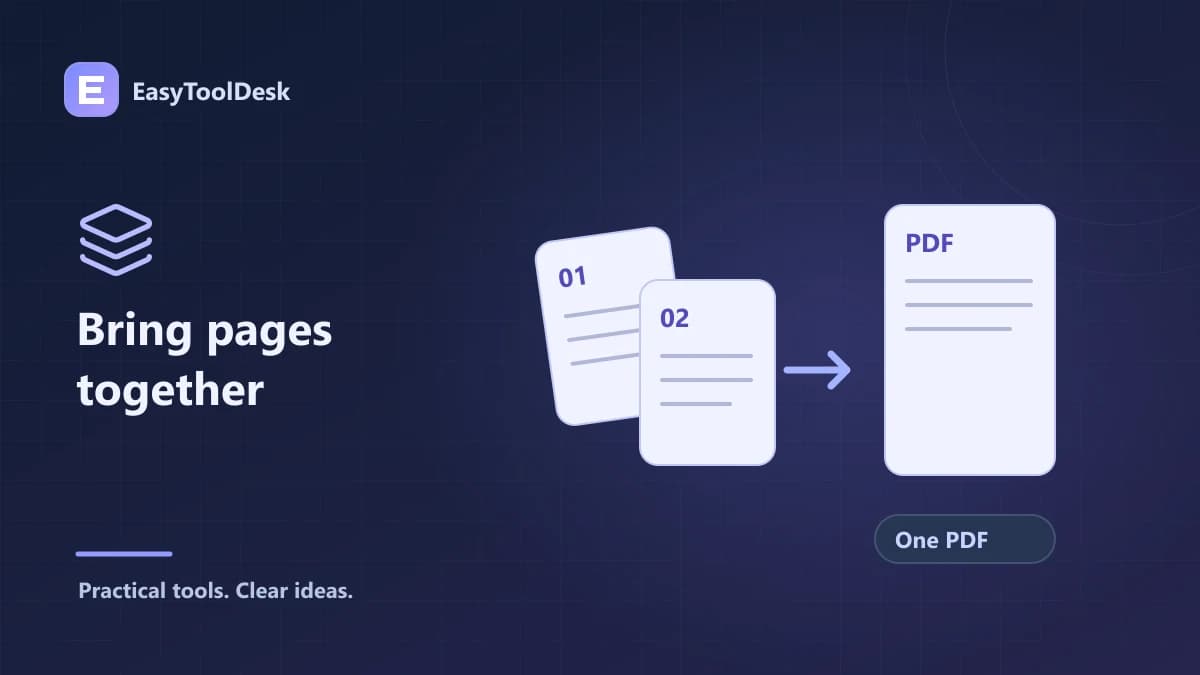
Merging PDFs is useful when several related documents need to be delivered as one file. Decide which documents belong together and which order the recipient should read them in. Keep your source files separately so that a mistaken selection does not replace the only available originals.
Open unfamiliar documents with appropriate care before including them in a shared file. A merge operation is a document-organization step, not a security scan. It should not be used as evidence that the resulting PDF is safe or free of sensitive information.
Select and process the PDFs
Open the PDF merger and select the PDF files you want to combine.
Review the selected-file list before processing.
Remove unrelated documents by resetting and choosing the intended files again.
Process the selection and download the generated PDF.
Open the downloaded result to verify its contents and sequence.
The current EasyToolDesk merger supports up to 30 files, 40 MB per file, and 128 MB across a selection. PDF documents and the combined output are limited to 500 pages. A file within those size limits can still fail if it is password-protected, malformed, or too demanding for the device’s available memory.
Verify page order instead of assuming it
File order and page order are not the same thing. Each selected document contributes its own pages, and the output follows the selected file sequence. File-picker behavior can vary, so check the actual combined result rather than assuming the operating system selected items in the order you expected.
For a simple verification, if the first source has three pages and the next has two, expect five output pages. Check the transition between page three and page four, then inspect the remaining pages. This catches an ordering or selection mistake that might be hard to notice from the first page alone.
Know what a page-copy workflow may not preserve
Do not assume that merging preserves every interactive form behavior, bookmark, attachment, accessibility feature, or signature status from the source files. If those features matter, test the downloaded result in the relevant viewer and use a workflow designed for the requirement.
In particular, review signature-related requirements with the document owner rather than treating a copied page as the original signed record. The merger is intended for organizing pages; it does not validate legal status or certify document integrity.
Frequently asked questions
Can I merge password-protected PDFs? The current tool does not provide a password-unlocking workflow. Use an authorized unprotected copy where appropriate rather than trying to bypass document access restrictions.
Will Reset remove the merged download? No. It clears the selection and result links in the tool. Files already saved to your device remain there until you remove them through your device’s controls.
If you only need certain pages, read the guide to extracting and rotating PDF pages before combining the documents.