Send the pages the recipient actually needs
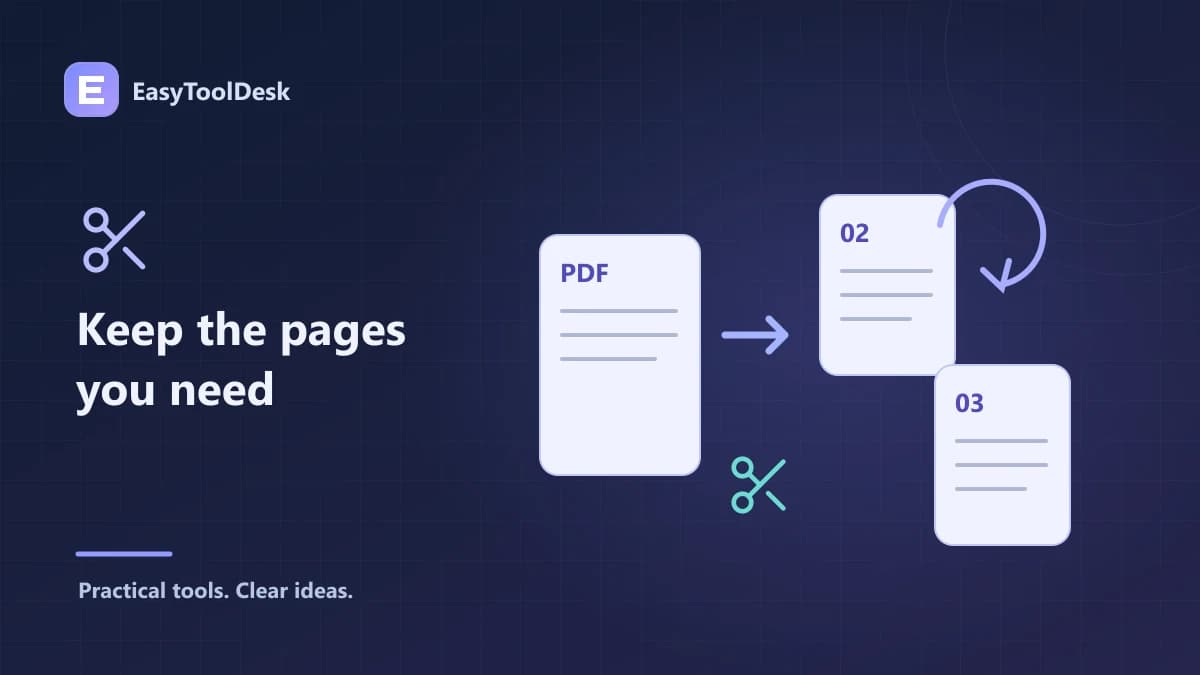
A large PDF often contains more material than a recipient needs. Extracting a relevant page range can make the document easier to navigate and reduce accidental oversharing. Rotating sideways pages can improve reading without changing which pages are included.
Start by opening the source and noting its page numbers. The visible page label printed on a document may differ from the page’s position in the PDF file. When entering a range, verify which numbering system the tool uses and check the exported result.
Extract a range or a selection
In EasyToolDesk’s PDF splitter, enter the page positions you want to extract, using whole page numbers and ranges. For example, 2-4 selects the second, third, and fourth pages. Check that the requested values exist in the selected document before processing.
The current page-selection helper sorts and deduplicates selected pages. A request such as 4,2,2 therefore is not a page-reordering instruction: it represents the unique selected pages in ascending order. Use the downloaded output to verify the selection, especially if your source has covers or unnumbered introductory pages.
Correct page orientation deliberately
Use the PDF page rotator when the document needs an orientation change. Choose the available rotation and inspect the result in a PDF viewer after downloading. The current tool applies the chosen rotation across the document; it is not an interface for choosing a different rotation for each page.
If only part of a document needs a different orientation, you may need to extract a subset and plan a separate recombination workflow. Check the final sequence and orientation rather than relying on a viewer’s temporary display rotation, which may not represent a saved document change.
Separate extraction from other tasks
Extracting pages selects content; it does not perform redaction inside a retained page.
Rotating pages changes orientation; it does not improve a blurry scan.
Converting PDF pages to JPG produces images, not an editable text document.
Merging pages does not scan for malware or certify signature validity.
Keep the originals until the final result has been reviewed and accepted.
The PDF tools apply a 40 MB per-file limit and a 500-page document limit for splitting and rotation. PDF to JPG has a separate 30-page limit. These checks reduce workload but do not guarantee that every complex or damaged PDF will process on every phone.
Frequently asked questions
Can extraction remove confidential text from a retained page? No. If sensitive material remains anywhere on a kept page, use a proper redaction workflow. Selecting fewer pages is not the same as sanitizing the pages you retain.
Why does a requested range fail? Check for page zero, values past the document’s page count, malformed ranges, or an unsupported source. Also verify that the document is not password-protected and that your device has enough memory.
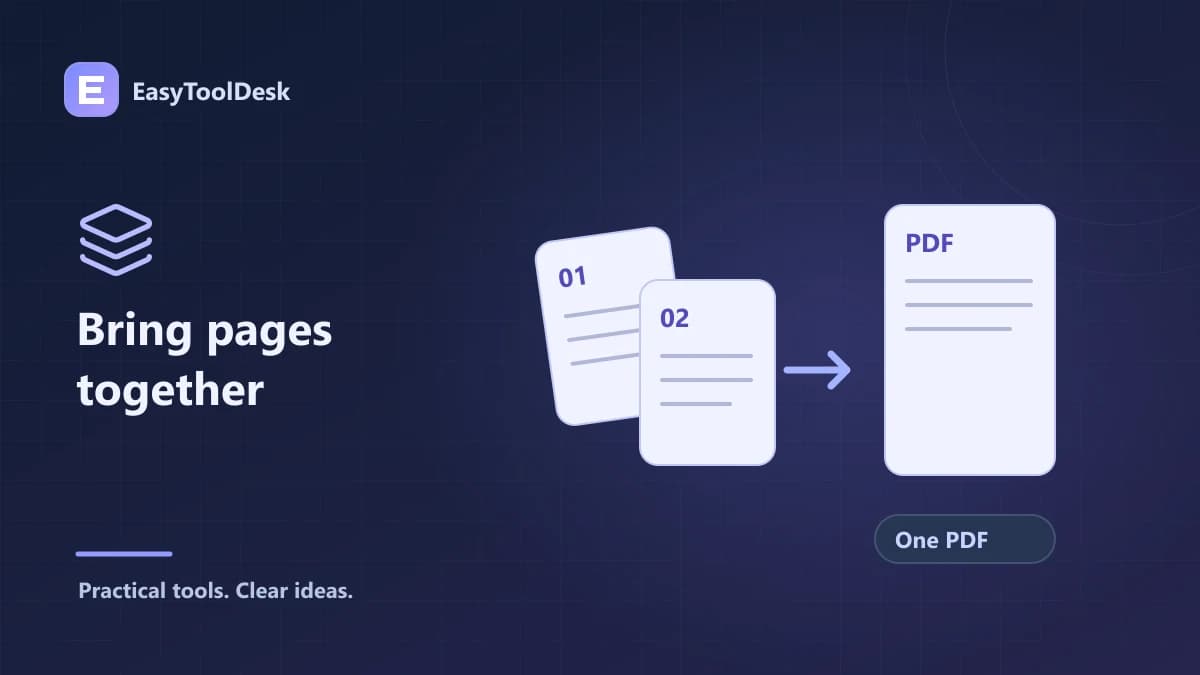
Finish with a PDF merge checklist if the extracted pages need to become part of a larger document.